Installing KUAL and MRPI
You will need to install KUAL (Kindle Unified Application Launcher) and MRPI (MobileRead Package Installer) to run homebrew on your Kindle.
Download the correct KUAL version
| Device Generation | Instructions | KUAL Download |
|---|---|---|
| K5 and newer | Download PEKI | PEKI |
| K4 and older | Download, place in documents folder and move onto Installing KOReader | KUAL-KDK-1.0.azw2 |
Download MRPI
MRPI (for modern devices)
This version of MRPI is provided by Marek
MRPI (for legacy devices - pre-K5)You may need to free up 220 MB of space to install both MRPI and KUAL without issues
Make sure Airplane mode is on before freeing up this space. If it isn't, your Kindle may use the freed space to download and install an OTA update.
Extracting MRPI
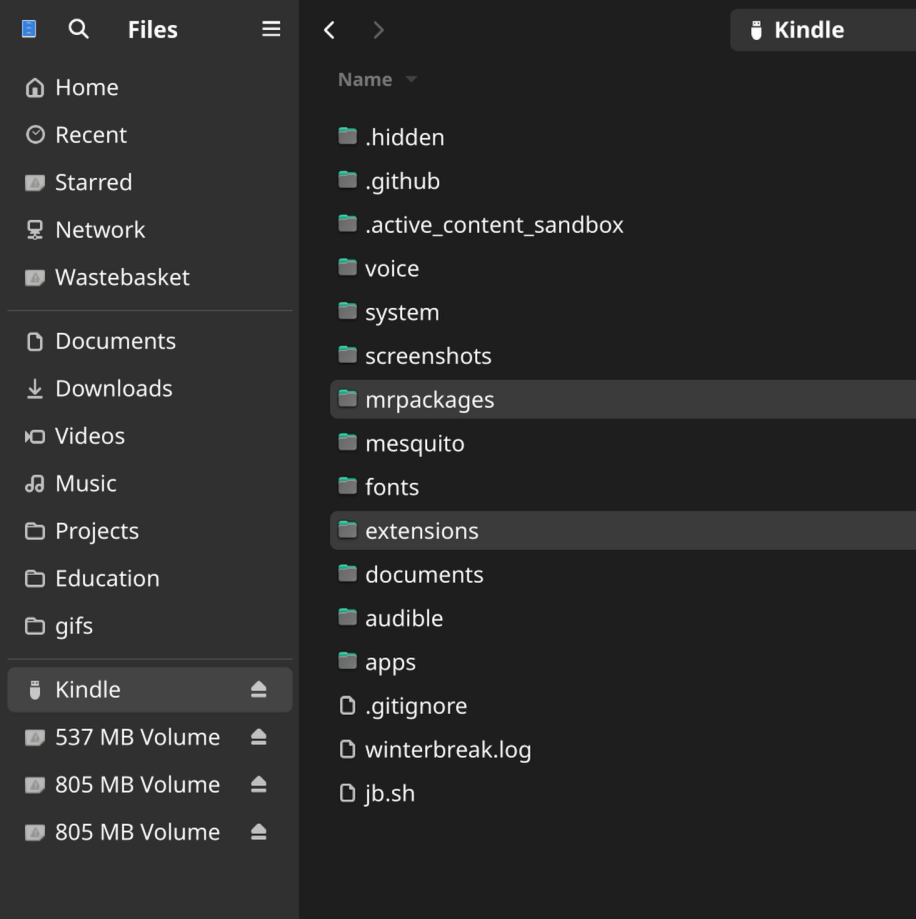
Extract the contents of the MRPI tar file you downloaded, and copy the extensions and mrpackages folders to your Kindle
Copying KUAL
Unzip PEKI.zip, and copy both KUAL.sh and KUAL.jar to the documents folder on the Kindle.
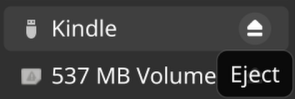
Eject and unplug your Kindle
Done
You can now open KUAL by clicking on the KUAL item in your library
Troubleshooting
- The installation or functionality of KUAL and MRPI may fail if there is not enough free space on your Kindle. If you are using the “fill storage” method to block updates, make sure your Kindle has
220 MBof available space before installing KUAL and MRPI - Verify that all folders and files are in the correct locations on your Kindle.
- Try restarting the Kindle if the
;log mrpicommand is not responding - Ensure that the file does not have any special characters such as brackets in it, some browsers may rename files adding
(1)or other additional suffixes to the file name and these should be removed before copying to the Kindle